Azure Application GatewayV2 (AG) is a web traffic (OSI layer 7) load balancer that enables you to manage traffic to your web applications.
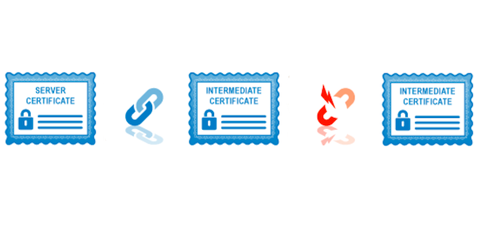
Regardless if you’re configuring TLS Termination or End-to-end TLS encryption, the AG have an issue which does not automatically correct the order of its SSL certificate chain. This problem can result in the application failing, especially on mobile devices and other browsers, as the certificate will be deemed untrusted.

This can happen if you import your certificate directly from KeyVault to AG or if you have exported the PFX directly from KeyVault and uploaded it into AG directly.
To fix the incorrect chain order, you will need to export your certificate PFX from KeyVault.
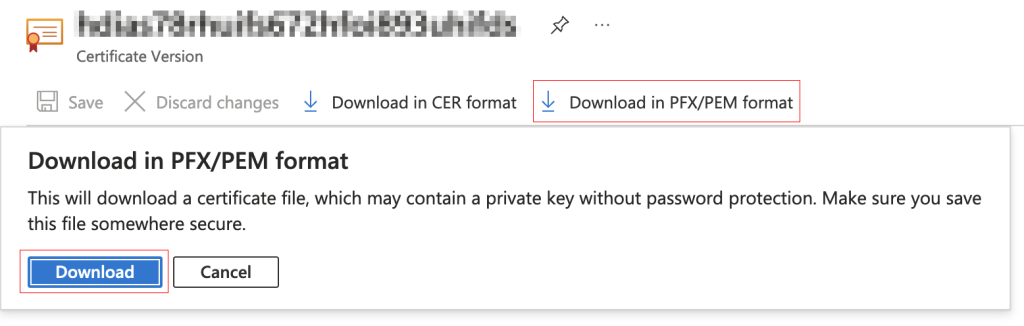
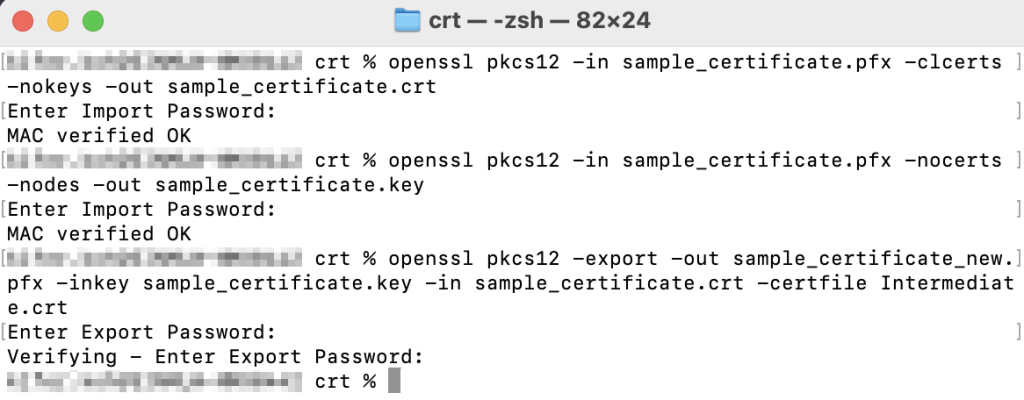
Once you have downloaded the PFX successfully, you will need to extract the CRT and KEY then combine it with your intermediate certificate in the correct order. You can do so using the following command using openssl.
Once you have your new certificate PFX file in the correct chain order, you need to upload it to AG. Proceed to your listener and select either Create new or Select existing depending on your situation, Select the newly created PFX with correct order and enter the password.
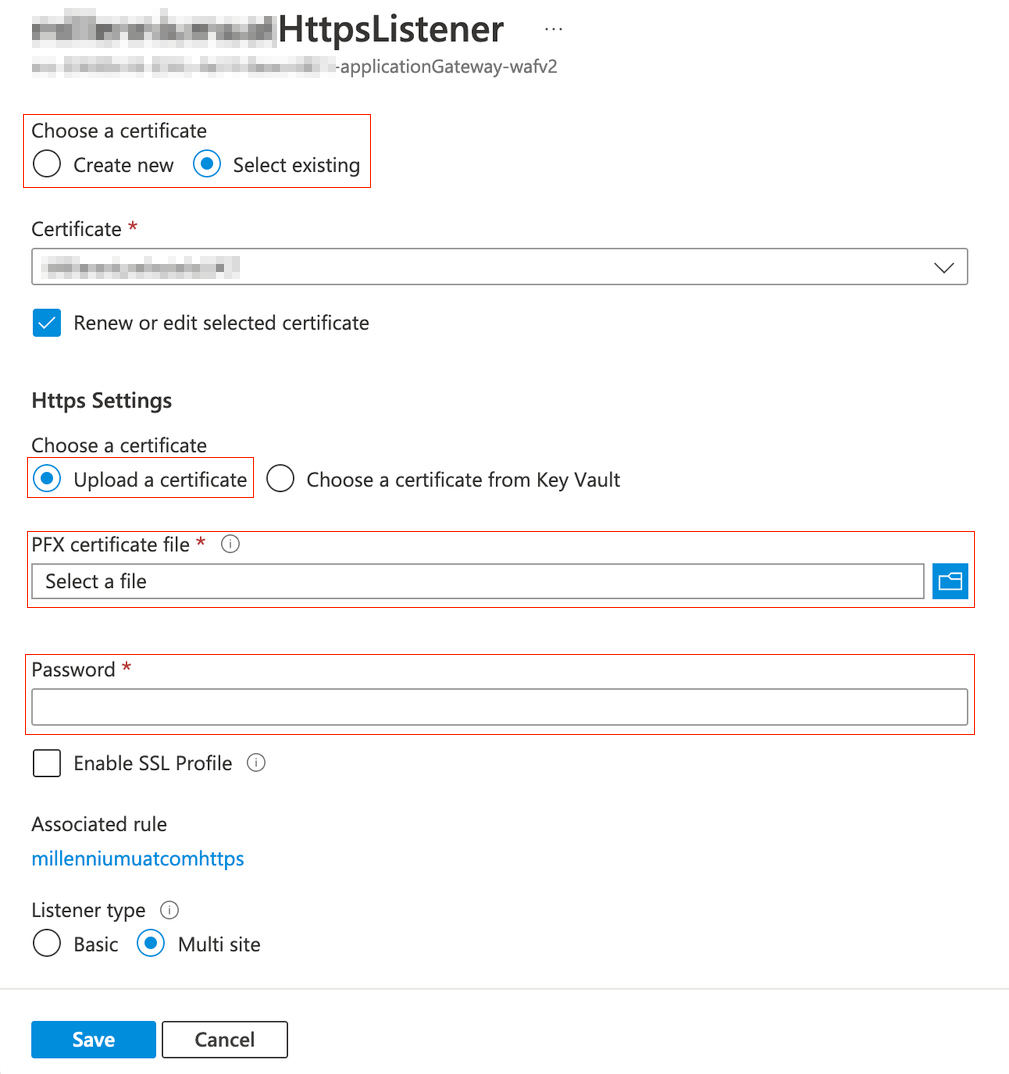
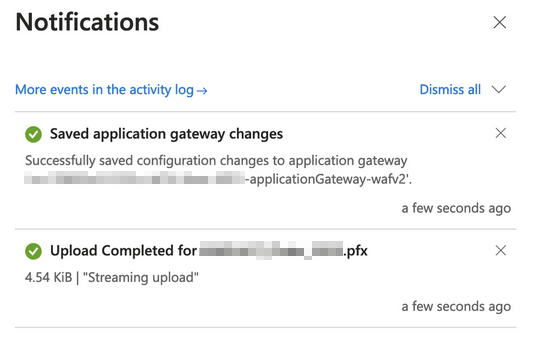
Click on Save to complete your changes. You should receive 2 notifications of the success.
Your new SSL is now uploaded to AG and you can verify that the certificate chain is in their correct order.