
To restore your webapp to an earlier time, go to your Webapp > Settings > Backups and click on the backup time you wish to restore.
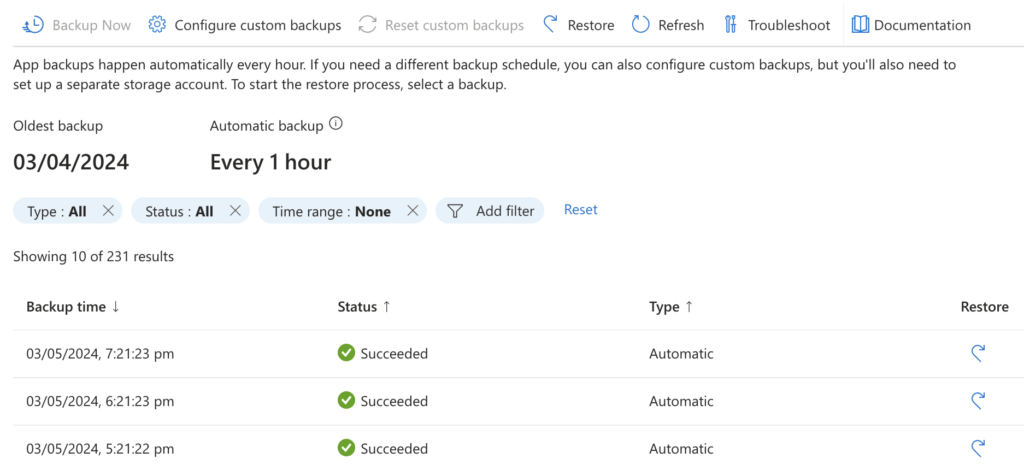
When you click the “restore” icon, this will bring up the options blade.
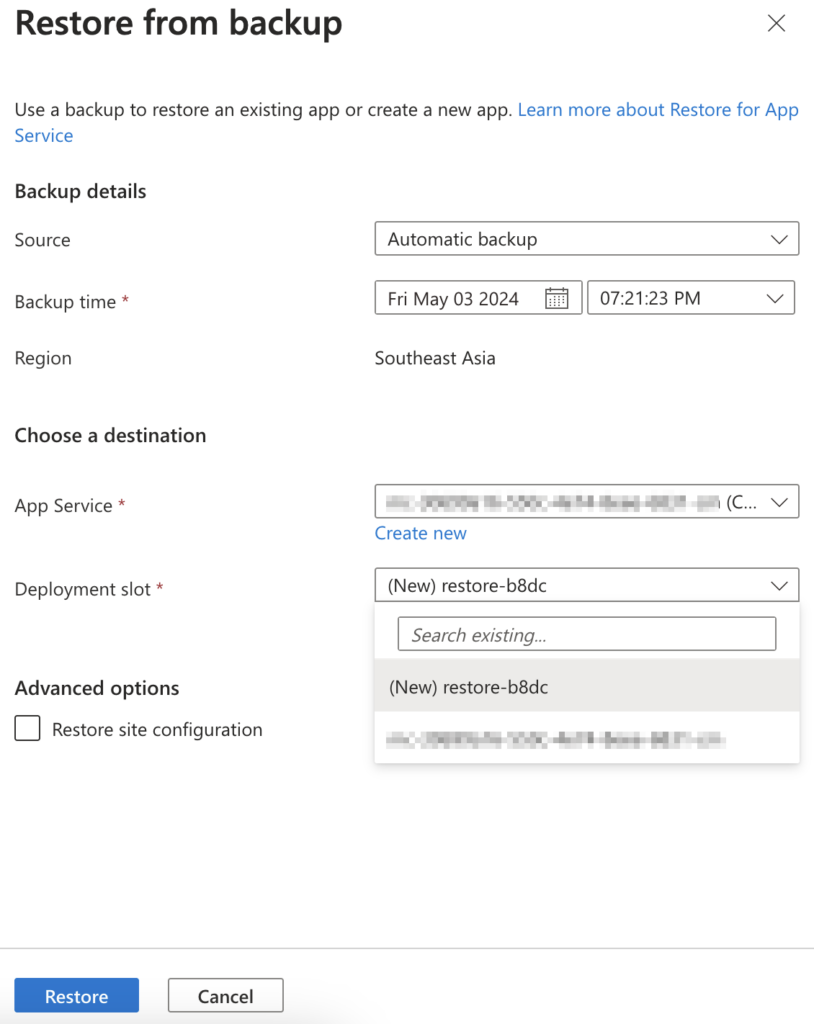
Under choose a destination, you will see “App Service” which is a dropdown of all your available webapp. Select the webapp that you wish to restore it to. The one marked with “(Current)” is the webapp that you’re currently on.
For “Deployment Slot”, you can either choose to deploy to a new slot or choose the existing one which will overwrite everything.
You can also choose if you wish to restore site configuration (optional unless you messed with your webapp configuration).
Click “Restore” to start the process. Your notification should show that the restore operation is successfully submitted. Do note that your webapp will automatically be stopped.
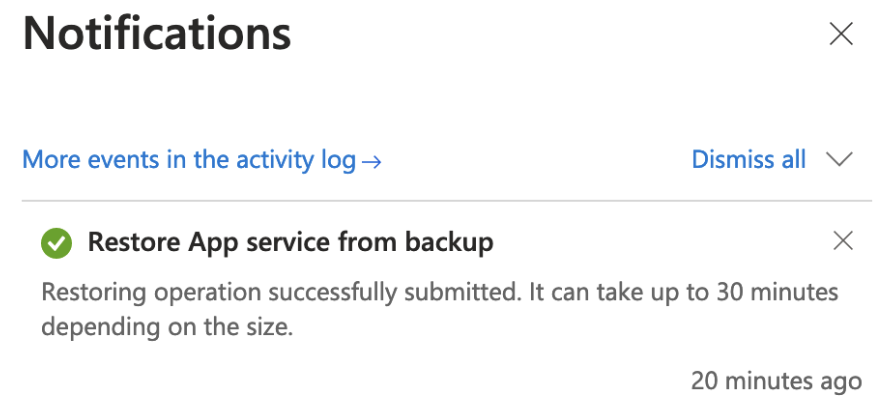
Now, the golden question (which is why this post was written) is how do I know when my Azure webapp restore is complete?
You can track the whole process in Activity Log.
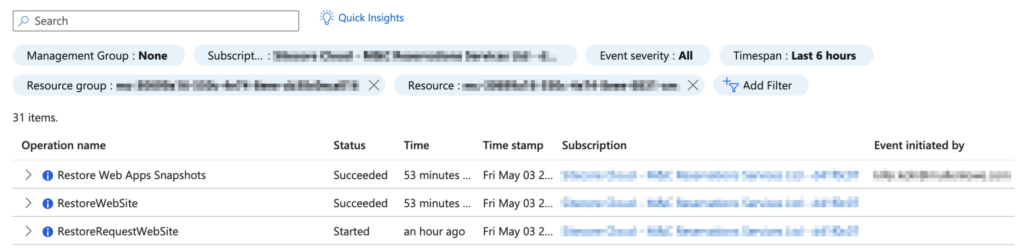
You can see that “RestoreRequestWebSite” has a Started status and that the whole restore process will be complete when you see both the “RestoreWebSite” and “Restore Web Apps Snapshots” returning the Succeeded status.